

Why Its Placement Matters for Local Rankings
The red pin on Google Maps that represents your business is not just a visual marker. It is the geographic anchor that Google uses to calculate the Distance component of your local ranking.
Where that pin sits on the map determines how close or far Google considers your business to be from every search conducted in your area. A pin in the wrong location, even by a matter of metres, can weaken your Distance signal, direct customers to the wrong place, and generate negative reviews from people who arrived somewhere that is not your business.
Most businesses never check their pin placement after initial setup. This guide covers why it matters, how Google sets pin positions, the common errors that cause misplacement, and exactly how to verify and correct your pin if it is not where it should be.
Google’s local ranking algorithm evaluates three signals: Relevance, Distance, and Prominence. Your GBP pin position is the primary input to the Distance calculation.
Google measures the geographic distance between your pin and the location of each person conducting a local search, and uses that distance as one of the three factors determining whether and where your business appears in the Map Pack.
The Distance signal does not operate like an on/off switch. It is a continuous variable. As the distance between your pin and a searcher increases, your Distance advantage over competitors closer to that searcher diminishes.
A pin accurately placed at your street address gives Google the most precise Distance signal possible.
A pin placed on the wrong side of a building, at the wrong entrance of a shopping centre, or at an approximate location rather than your actual address introduces inaccuracy into that Distance calculation that compounds across every search conducted from every location in your area.

The customer experience dimension
Beyond ranking, a misplaced pin has a direct customer experience consequence. When someone requests directions to your business using Google Maps, the navigation system routes them to your pin’s location.
If your pin is fifty metres from your actual entrance, customers arrive at the wrong door or the wrong side of a building and may give up or leave a negative review about the experience.
If your pin is significantly misplaced, perhaps on the wrong street or at a nearby address with a similar name, customers may not find your business at all.
This is a particularly common problem for businesses in shopping centres, business parks, multi-unit buildings, and newly developed areas where Google’s address database has not yet fully updated. In each of these cases, the pin Google places by default may not reflect where customers should actually arrive.
Map Your Ranking Across Your Full Service Area
Once your pin is correctly placed, see how far its influence reaches. GMB Crush’s geo-grid maps your Map Pack position at every point across your service area.
When you add an address to your GBP profile, Google geocodes that address: it converts the text address into geographic coordinates and places your pin at the corresponding location on the map.
The accuracy of this geocoding depends on how precise and standardised your address is, and on how well Google’s address database reflects the physical reality of your location.
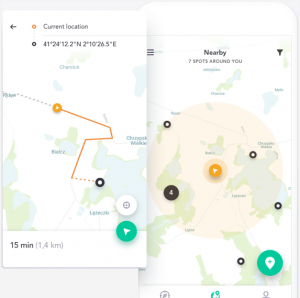
Geocoding accuracy varies
For most businesses on well-established streets in urban areas, geocoding is highly accurate.
The pin lands precisely at the correct property.
For businesses in edge cases, accuracy degrades:
- Newly built developments where the address exists in government records but has not yet propagated through Google’s address database may be geocoded approximately, placing the pin somewhere on the building plot rather than at the correct entrance.
- Businesses on long rural routes where the address includes a route number rather than a street name may be geocoded at the approximate midpoint of the route rather than the correct position.
- Businesses in large multi-unit complexes, shopping centres, or office parks where the unit or suite number is the distinguishing detail may be geocoded at the main complex entrance rather than the specific unit.
- Businesses where the address has multiple spelling variants in different databases may see their pin placed at whichever variant Google has most confidence in, which may not be the correct physical location.
Google may update your pin without notice
Google’s geocoding database is updated continuously as new address data becomes available. A pin that was correctly placed when you first set up your profile may shift position if Google updates its address database in your area.
This happens without notification to the business owner. A profile that was verified and correctly configured years ago may currently have a pin that has drifted from its original location due to a database update.
- Common Pin Placement Errors
Understanding which error types occur most frequently allows you to check your pin with the right scenarios in mind.
Wrong side of a large building
For businesses occupying ground-floor units in large buildings, the pin is sometimes placed on the opposite side of the building from the customer-facing entrance.
Customers following navigation arrive at the building but at the wrong access point. This is especially common for businesses on corner plots where the address number technically corresponds to one street but the entrance faces a different one.
Shared address with another business
Two businesses at the same address, differentiated by unit or suite number, sometimes have their pins placed at the same coordinates.
Google’s system may merge the pins or place both at the same point, creating confusion for customers attempting to navigate to either business specifically.
Approximate placement in new developments
In newly constructed developments, Google often places pins at approximate locations before precise address data is available.
A business that opened in a new building may have its pin placed anywhere within the development footprint rather than at its specific unit.
Wrong street for a corner property
Businesses on corner plots sometimes have their pin placed on the side street rather than the main street where their entrance is located, or vice versa.
This is a geocoding interpretation issue where Google assigns the address to a different street than the one customers naturally associate with the entrance.
Pin drift from database updates
As discussed above, Google’s address database updates can shift a previously correct pin.
Businesses that have not verified their pin position recently may have experienced drift without realising it.
Your Competitors Are Already Using GMB Crush
GBP audits, geo-grid ranking maps, competitor analysis, review monitoring, and AI Overview insights. All in one platform. Start your 14-day trial today.
Checking your pin placement takes under five minutes and should be done when you first set up your profile and at least once per year thereafter.
Check your pin on Google Maps
- Open maps.google.com in a browser or the Google Maps app on your phone.
- Search your business name or address.
- When your listing appears, click or tap on it to open the profile.
- The pin on the map shows exactly where Google has placed your business. Compare this position to your actual location by using the Street View feature or zooming in on the satellite view.
- Confirm that the pin is precisely at your entrance or the location where customers should arrive, not at a generic point on the building plot or an approximate nearby location.
Check your pin from a customer’s perspective
Open the directions function from your GBP listing and navigate to your own business from a location nearby.
Follow the navigation exactly and note where it routes you. If it takes you to the wrong entrance, the wrong building, or any location other than where customers should arrive, your pin needs adjustment.
This customer-perspective check is more revealing than simply looking at the pin position on a map, because it tests the full navigation experience rather than just the coordinate accuracy.
- How to Correct a Misplaced Pin
Correcting a misplaced pin is done through your GBP profile editor.
You can manually adjust the pin position by dragging it to the correct location on the map.
Adjusting your pin position
- Sign in to your Google account and go to business.google.com, or search your business name on Google while signed in to access the profile management panel.
- Click ‘Edit profile’ and navigate to the location or address section.
- Look for the map view within the address editing interface. You should see your current pin position on the map.
- Click or tap on the pin and drag it to the correct location. Use the satellite or terrain view for maximum precision. For a ground-floor business, place the pin at your entrance rather than the geometric centre of the building.
- For businesses in multi-unit buildings, place the pin as close as possible to your specific unit entrance, not at the main building entrance.
- Save the change.
Google may apply the correction immediately or may subject it to a brief review if the proposed move is significant.
Significant location changes — moving a pin by more than a hundred metres — may trigger a review process that temporarily shows the old position while the change is evaluated.
When to request manual correction
If the pin correction you need is in a location that Google’s interface will not let you drag to, or if your pin has been moved back to an incorrect position after a previous correction, you can submit a correction through Google Maps’ ‘Suggest an edit’ feature on your listing, or contact Google Business Profile support with documentation of the correct location including a screenshot of the correct position on a satellite map and any supporting documentation such as your lease agreement showing your unit number.
Businesses with multiple locations need to verify pin placement for each location independently. A centralised address management review that confirms the address text is correct for each location does not verify that the pin is correctly placed for each one.
Large buildings, shared addresses, and new developments create pin placement risks at each individual location that need to be checked separately.
Each location’s pin as a Distance anchor
Each location’s GBP pin is an independent Distance signal anchor. The pin position for your Manchester branch has no relationship to the pin position for your Birmingham branch.
Each pin is evaluated by Google’s Distance algorithm against the local searches specific to that location’s geographic context. A correctly placed pin at each location maximises the Distance signal for each independently.
For retail chains and service businesses with dense local competition, a pin that is even slightly misplaced relative to a competitor can tip the Distance calculation in their favour for searches from the most competitive areas near the two businesses.
The optimisation stakes for pin accuracy are higher in dense urban markets than in areas with fewer competitors.
Service area businesses that have chosen to display their address face the same pin placement considerations as storefront businesses.
SABs that have hidden their address and configured service areas have a different geographic signal structure, but pin placement is still relevant to them in a specific way.
Hidden address SABs
For SABs that do not display a physical address, Google uses a centroid calculated from the service area configuration as the basis for Distance calculations.
The hidden address behind the profile still influences where that centroid is calculated from. An SAB based in the south of a city with a service area covering the whole city will have a centroid biased toward the south, which affects its Distance calculation for searches from the north of the city.
For SABs, the equivalent of pin accuracy optimisation is service area configuration accuracy: ensuring the listed service areas reflect the full operational geography rather than a subset, so that Google’s centroid calculation represents the actual service territory rather than a partial or incorrectly bounded version of it.
SABs that show their address
Some service area businesses choose to display a physical address, either because they have a customer-facing office or because they operate from a commercial premises.
For these businesses, pin placement matters in exactly the same way as for a storefront. The pin position should reflect the exact customer-facing entrance or the location where customers would arrive if seeking the business directly.
Recommended Reading
Business Not Showing on Google Maps: diagnostic guide including address and pin placement errors
Audit Your Full Profile Against Local Competitors
GMB Crush’s competitor audit shows the complete profile configuration of the businesses outranking you — so every optimisation decision is based on evidence, not guesswork.
- GMB Crush Takeaways
Your GBP map pin is the geographic foundation of your Distance ranking signal. A correctly placed pin gives Google the most precise Distance data possible for every local search conducted in your area.
A misplaced pin introduces inaccuracy that compounds across every distance calculation and sends customers to the wrong location.
Here is the action sequence:
- Check your pin position by opening your GBP listing in Google Maps and comparing the pin location against your actual entrance on the satellite view. Then follow your own navigation directions from a nearby location to confirm customers are being routed correctly.
- Correct misplacements by dragging the pin to your exact entrance location in the GBP profile editor. For multi-unit buildings, aim for your specific unit entrance rather than the main building entrance.
- Check pin placement at setup and at least annually thereafter. Google’s address database updates can shift previously correct pins without notification.
- For multi-location businesses, verify pin placement at each location independently. A correct address on file does not guarantee a correctly placed pin, particularly in new developments, large complexes, or buildings shared with other businesses.
- For SABs with hidden addresses, focus on service area configuration accuracy as the equivalent optimisation: the geographic scope of your listed service areas determines the centroid Google uses for your Distance calculations across your territory.
Pin placement is a five-minute check that most businesses never perform.
It costs nothing to verify, takes minutes to correct, and improving the accuracy of your Distance signal is a compounding benefit for every local search conducted anywhere in your area.
Verify it today and confirm it periodically. The ranking signal it feeds runs continuously.
One Platform. Every Local Ranking Signal.
Audit, optimise, track, and outrank. GMB Crush gives businesses and agencies the data to build a local presence starting from the correct geographic foundation. 14-day trial, no credit card required.