

How to Find, Edit, and Delete Your Google Reviews
You wrote a Google review for a business months ago and now want to update it. Maybe your experience changed, maybe you spotted a typo, maybe the business resolved a problem you mentioned, and deserves a better rating.
Or perhaps you wrote a review for the wrong business entirely and want to remove it. Google makes this possible, but finding where to do it is not always obvious.
This guide covers exactly how to find, edit, and delete the reviews you have written on Google on both mobile and desktop, and explains what happens on the business side when a customer updates or removes a review.
If you are a business owner trying to manage reviews left on your profile by others, the guide for that is linked at the end.
The most direct way to find all the reviews you have written on Google is through the Google Maps app on your smartphone.
All your contributions, including reviews, photos, and edits, are stored in one place under your Google account profile.

Step-by-step: finding your reviews on iPhone or Android
- Open the Google Maps app on your device.
- Tap your profile photo or initials in the top-right corner of the screen. This opens your Google Account menu.
- Tap ‘Your contributions.’ This opens your contributions hub.
- Tap the ‘Reviews’ tab at the top of the contributions screen.
- All the reviews you have written appear here, sorted by most recent. Each review shows the business name, your star rating, your review text, the date you wrote it, and the number of helpful votes it has received.
From this list, you can tap any individual review to open it and see its full content.
You can also edit or delete any review directly from this screen steps for both are covered in the sections below.
Can’t find a review you wrote?
If a review is not appearing in your contributions list, check that you are signed in to the correct Google account. Reviews are tied to the Google account that was active when you wrote them.
If you have multiple Google accounts, switch between them using the profile selector in the top-right corner of Google Maps and check each account’s contributions separately.
Google also periodically removes reviews that violate its content policies, even reviews written in good faith. If a review you wrote has been removed by Google, it will no longer appear in your contributions list.
There is no notification when this happens.
Monitor Every Review Across Your GBP Profile
GMB Crush alerts you the moment a new review lands on your profile or an existing one is edited so you respond while the interaction is still relevant and no review goes unnoticed.
If you prefer to manage your reviews from a computer rather than a mobile device, the desktop process through Google Maps works in the same way, with slightly different navigation.
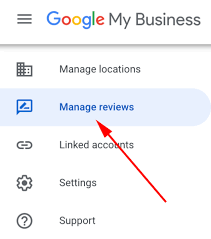
Step-by-step: finding your reviews at maps.google.com
- Go to maps.google.com in your browser and make sure you are signed in to your Google account.
- Click the three horizontal lines (hamburger menu) in the top-left corner of the search bar.
- Click ‘Your contributions’ from the left-hand menu that opens.
- Click the ‘Reviews’ tab at the top of the contributions page.
- Your full review history appears. Each review shows the business, your rating, your text, and the date.
Alternative desktop method via Google Search
- Go to google.com and sign in.
- Search for ‘my Google reviews’ or navigate to myaccount.google.com.
- From your Google Account, find the ‘Data and privacy’ section.
- Under ‘Your activity and timeline,’ select ‘Maps’ to find contributions including reviews.
The Google Maps route (Step 1 above) is generally more direct and shows your reviews in a cleaner interface than navigating through Google Account settings.
- How to Edit a Google Review You Wrote
Editing a review lets you change your star rating, update your written text, add or remove photos, or correct errors in the original review.
The edited version replaces the original. The business’s profile will show your updated rating and text, and the review date updates to show when it was last edited.
Editing on mobile
- Find the review you want to edit using the steps in Section 1.
- Tap the three dots (more options icon) next to the review you want to edit.
- Tap ‘Edit review.’
- The review editing interface opens. You can change your star rating by tapping the stars, update your written text in the text box, and add or remove photos using the photo attachment option.
- Tap ‘Post’ when you have finished editing. Your updated review goes live immediately.
Editing on desktop
- Find the review you want to edit using the desktop steps in Section 2.
- Click the three dots next to the review.
- Click ‘Edit review.’
- Make your changes to the rating or text.
- Click ‘Post’ to save and publish the updated review.
What changes when you edit a review
When you edit a review, the business profile shows your updated star rating and text.
The review date shown on your profile contribution updates to reflect when the edit was made, not the original date.
On the business’s profile in Maps and Search, the review display may show the original date alongside an ‘Edited’ label, depending on how Google displays the review in that particular context.
Your original review content is replaced entirely by the edited version.
There is no version history visible to the business or to other users; only the current version of your review appears publicly.
Deleting a review permanently removes it from the business’s profile and from your contributions history.
This action cannot be undone. Before deleting, consider whether editing the review to reflect your current experience would be more appropriate.
An updated review that explains a situation has been resolved can be more helpful to both the business and future readers than a blank space where a review used to be.
Deleting on mobile
- Find the review you want to delete using the steps in Section 1.
- Tap the three dots next to the review.
- Tap ‘Delete review.’
- Google will ask you to confirm the deletion. Tap ‘Delete’ to confirm.
- The review is removed immediately from the business’s profile and from your contributions list.
Deleting on desktop
- Find the review using the desktop steps in Section 2.
- Click the three dots next to the review.
- Click ‘Delete review.’
- Confirm the deletion when prompted.
What happens after deletion
Once deleted, the review is removed from the business’s profile on Google Maps and Google Search immediately in most cases, though it can occasionally take a few hours to clear from all Google systems.
The business’s overall star rating recalculates automatically to reflect the removed review. If you were the only reviewer at a certain star level, the average may shift noticeably.
You cannot recover a deleted review. If you delete a review and later change your mind, you would need to revisit the business and write a new review from scratch.
Your Competitors Are Already Using GMB Crush
GBP audits, geo-grid ranking maps, competitor analysis, review monitoring, and AI Overview insights. All in one platform. Start your 14-day trial today.
- What Review Edits Mean for the Business
If you are a business owner reading this guide, understanding how customers can edit their reviews has practical implications for how you handle negative reviews, how quickly you respond to concerns, and why the way you treat customers after a complaint can directly affect your profile’s star rating.
A negative review can become a positive one
When a business resolves a customer’s problem effectively, and the customer updates their review to reflect that resolution, the profile benefits in three ways: the star rating improves, the review text changes from negative to positive, and the public record shows that the business took the complaint seriously and acted on it.
This outcome is more valuable than simply flagging a review for removal because it is visible evidence of how the business handles problems, which is information prospective customers actively look for.
The most effective way to encourage a review update is direct, personal communication with the reviewer after resolving the issue. Thank them for bringing it to your attention, explain what you have done to address it, and, where appropriate and non-pressuring, mention that if they feel their experience has changed, they are welcome to update their review.
Many customers who had a bad experience and saw it genuinely resolved will update their review without needing to be asked.
The review freshness signal
When a customer edits a review, the edit timestamp updates. Google’s systems register the edited review as more recent activity on your profile.
A profile that has customer-edited reviews appearing as recent activity benefits from this freshness signal in the same way that new reviews do it signals an active, currently relevant profile.
This means resolving customer complaints and prompting review updates is not just reputation management. It is an active review management strategy that contributes to your profile’s recency signals.
Monitoring for review changes
Google does not send automatic notifications when an existing review is edited.
A customer who wrote a three-star review six months ago and updates it to a one-star review after a second negative experience will not trigger an alert through the standard GBP dashboard.
By the time you notice the change during a manual review of your profile, the updated negative review may have been visible to hundreds of prospective customers without a response from you.
GMB Crush’s review monitoring alerts you when any review on your tracked profiles changes, including existing reviews that are edited, so you can respond promptly, whether the change is positive or negative.
For businesses actively managing their reputation, catching an edited review within hours rather than weeks is the difference between a timely, context-setting response and a negative review that sits unanswered for months.
The key factor is this: most business owners think about reviews as arriving once and being permanent. In reality, reviews are editable at any time. A satisfied customer can become dissatisfied and update their review years later. A dissatisfied customer whose issue is resolved promptly can become your most enthusiastic advocate. The businesses that manage this process actively, rather than reactively, consistently build stronger review profiles over time.
From the customer’s perspective, there are several situations where updating a previously written review is both appropriate and genuinely useful to other customers reading those reviews.
When to update your review
- Your experience changed: you left a negative review after a bad experience, but the business reached out, resolved the issue, and you had a much better subsequent experience. Updating the review to reflect the resolution is both fair to the business and helpful to other customers trying to decide whether to use them.
- You noticed a factual error: you wrote that the business was not open on Sundays, but they are, or you mixed up the business with a different one. Correcting factual errors in your reviews helps other customers get accurate information.
- Time has passed, and circumstances have changed: a review you wrote several years ago describes a business that has substantially changed under new ownership or management. An update reflecting the current experience is more useful to readers than an outdated account that no longer reflects reality.
- You want to add more detail: after some time, you remember additional aspects of the experience that would be useful to others. Editing the review to add this detail makes it more helpful.
What you cannot do with reviews
You cannot edit or delete a review written by someone else on a business you manage.
As a business owner, the only review management actions available to you on your own profile are: responding to reviews, and flagging reviews that violate Google’s content policies for potential removal.
The guide for how to manage reviews on your own business profile, including how to request removal of policy-violating reviews, is linked below.
Track How Your Review Profile Compares to Competitors
GMB Crush’s competitor audit shows your review count and velocity against the businesses outranking you in your local Map Pack.
Recommended Reading
How to Remove Google Reviews: the business owner’s guide to flagging, responding to, and managing reviews on your GBP profile
- GMB Crush Takeaways
Finding, editing, and deleting your Google reviews is straightforward once you know where to look the Google Maps app on mobile or maps.google.com on desktop, through Your Contributions.
Here is the practical summary:
- To find your reviews: open Google Maps, tap your profile photo, tap ‘Your Contributions,’ then tap ‘Reviews.’ On desktop, use the hamburger menu at maps.google.com and select ‘Your contributions.’
- To edit a review: tap the three dots next to any review in your contributions list and select ‘Edit review.’ Update your rating and text and tap ‘Post.’ The edited version replaces the original immediately.
- To delete a review: tap the three dots next to the review and select ‘Delete review.’ Confirm when prompted. Deletion is permanent and cannot be undone.
- For business owners: a customer who updates a review after a resolved complaint is one of the most valuable review outcomes available. The updated review, the fresh timestamp, and the visible evidence that your business resolved the issue are all more valuable than any new five-star review from a new customer.
- Set up GMB Crush review monitoring to catch edited reviews on your profile: Google does not send alerts when existing reviews are changed. Real-time alerts mean you respond within hours, not weeks, keeping your review profile actively managed and your responses timely and relevant.
Reviews are not permanent. Every review on your business profile can be updated by the customer who wrote it at any time.
The businesses that understand this and that actively work with customers to ensure review updates reflect resolved experiences build stronger, more dynamic review profiles than those treating reviews as a static dataset.
Manage them accordingly.
One Platform. Every Local Ranking Signal.
Audit, optimise, track, and outrank. GMB Crush gives businesses and agencies the tools to build and protect a review profile that drives Map Pack rankings and customer trust. 14-day trial, no credit card required.