
The Complete List and How to Use It
Google Business Profile has over 4,000 category options. That number is both the asset and the problem.
The list covers every business type with remarkable specificity. But its size makes finding the right category feel harder than it should be, and most businesses either default to the first vaguely matching option or spend too long browsing without a clear method.
This guide explains how the category list is structured, the fastest way to find what you need within it, what the list does and does not tell you, and why browsing the list alone is only half the picture when making your category decisions.
The GBP category taxonomy is a hierarchical list maintained and updated by Google.
Categories are organised from broad to specific. At the top level, you have general descriptors like ‘Restaurant’ or ‘Contractor.’ Below those sit increasingly specific subcategories: ‘Italian Restaurant,’ ‘Pizza Restaurant,’ ‘Neapolitan Pizza Restaurant.’
The further down the hierarchy you go, the more precisely the category matches a specific business type and a specific set of customer search queries.
This hierarchy is why category specificity matters so much for local ranking.
Each level of specificity represents a different competition pool. ‘Restaurant’ places a business in the same pool as every restaurant in the area. ‘Italian Restaurant’ places it in a smaller pool of Italian dining options.
‘Neapolitan Pizza Restaurant’ places it in an even smaller, more precisely matched pool. The smaller the pool, the easier it is to rank.
The more specific the query intent, the higher the conversion rate tends to be.
Category taxonomy is not fixed
Google adds, removes, and restructures categories periodically. A category that was the most specific option for a business type at one point may have been split into multiple more specific subcategories since.
A business that set its category configuration several years ago and has not revisited it may be using a category that is now less specific than available alternatives. Annual category audits catch these changes before they become competitive gaps.
The total number of categories in the taxonomy changes with each update. It has grown substantially over the years as Google has added more specific options for niche business types.
The count you see in various guides reflects the version of the taxonomy at the time that guide was written, not necessarily the current count.
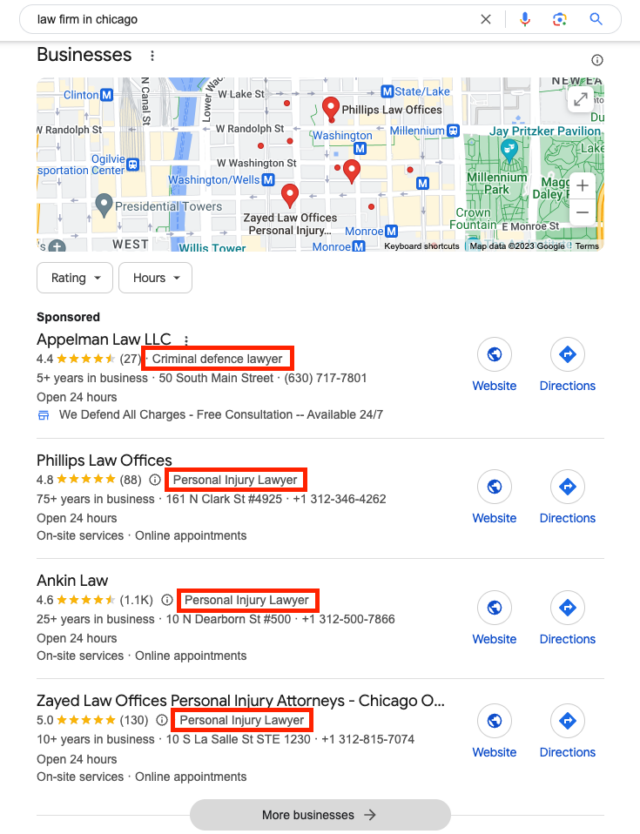
See the Exact Categories Your Competitors Use
Browsing the full category list tells you what exists. GMB Crush tells you what the top-ranking businesses in your specific local market are actually using. That is the data that matters for your ranking decisions.
There are two ways to browse the GBP category list: through the search field in your GBP profile editor, or through an external list file. Both have their uses depending on what you are trying to accomplish.
Searching inside your GBP profile
The most direct method is to type your business type into the category field inside your GBP profile editor. As you type, Google’s autocomplete shows matching categories from the current taxonomy.
This is the most accurate method because you are searching the actual live taxonomy, not a static list that may be out of date.
Type the core word that describes your business and review the suggestions.
A plumber types ‘plumber’ and sees: ‘Plumber,’ ‘Emergency Plumber,’ ‘Gas Installation Service,’ ‘Heating Contractor,’ ‘Drainage Service.’ Each suggestion is a distinct category with its own competition pool. Browse the full list of suggestions by scrolling down rather than accepting the first result immediately.
Using an external category list
External lists of all GBP categories are available as downloadable spreadsheets.
These are useful for bulk research and for identifying secondary category options across a range of service types without navigating the GBP interface repeatedly.
To find the relevant category in a large list file, use the keyboard shortcut Ctrl+F (Windows) or Cmd+F (Mac) to open a search within the document and type your business type or service keyword.
The limitation of external lists is that they reflect the taxonomy at the date they were created or last updated. Categories added or modified since that date will not appear.
For final category selection decisions, always verify that your chosen categories exist in the current live taxonomy by confirming they appear in the GBP profile editor autocomplete.
Categories are available in your local language
The GBP category taxonomy is localised. Businesses in different countries see category options in their local language, and some categories exist in the taxonomy for specific markets but not others.
If you are researching category options for a business in a specific country, search using the local language term rather than a translated one, as the local version of the taxonomy is what Google’s ranking system in that country uses.
Your Competitors Are Already Using GMB Crush
GBP audits, geo-grid ranking maps, competitor category analysis, review monitoring, and AI Overview insights. All in one platform. Start your 14-day trial today.
- What the List Tells You and What It Does Not
Browsing the GBP category list tells you which category options exist and which specific terms Google uses to classify business types.
That is genuinely useful. It is also only half of what you need to make a good category decision.
What the list tells you
The list tells you the universe of options available. It tells you how specific you can get with your primary category choice. It shows you adjacent categories that might be appropriate as secondary categories.
It helps you understand how Google’s taxonomy classifies business types in your industry. These are all valuable inputs to a category decision.
What the list does not tell you
The list does not tell you which categories the businesses currently outranking you in your specific local market are using. It does not tell you which category is the highest-performing option for your business type in your specific city.
It does not tell you which secondary categories are generating the most query traffic for your competitors. And it does not show you how your current category configuration compares to the competitive standard in your area.
A business that selects a category from the list based entirely on what looks like a good match is making a decision without the most important data point: what is actually working in their market.
Two businesses of the same type in different cities may have different optimal category configurations because their local competitive landscapes differ. The list shows you what is possible. Competitor data shows you what is effective.
The full category list is the starting point. The competitor’s category configuration is the evidence. Decisions made with both are consistently better than decisions made with either one alone.
The practical method for making a category selection that combines list research with competitive evidence has three steps.
- Search the full category list for your business type and build a shortlist of the three to five most specific options that accurately describe your primary service. Include both the broadest and the most specific options, so you have the full range visible when you compare against competitor data.
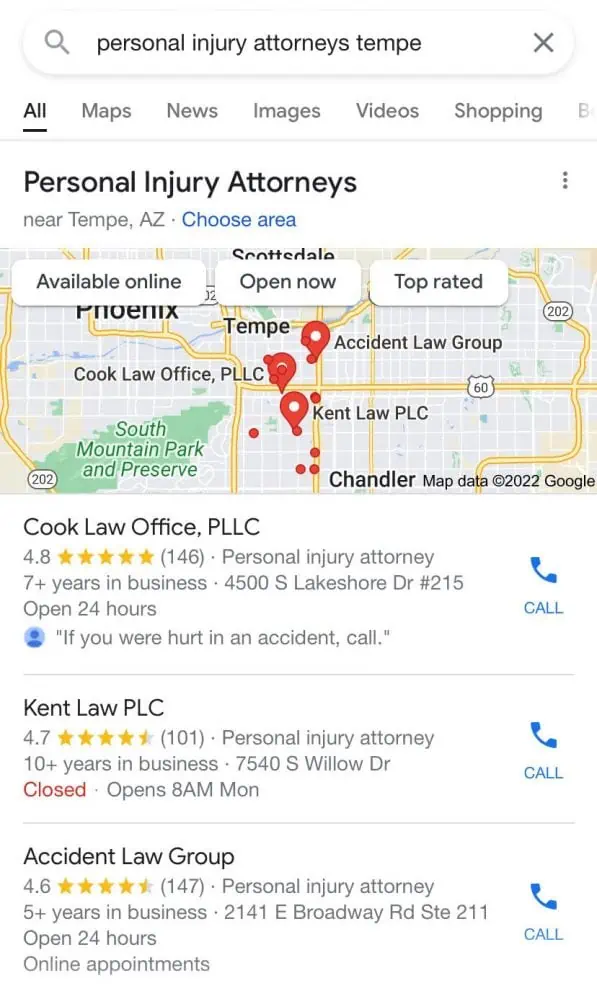
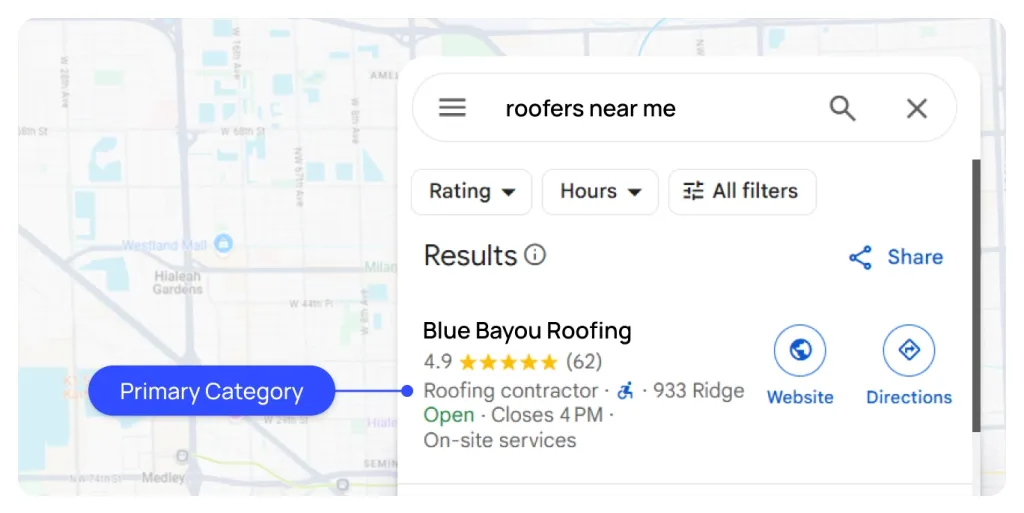
- Search your primary service keyword in Google Maps and open the top three Map Pack listings. Note the primary category displayed under each business name. This tells you what is currently working at the top of your specific local market.
- Cross-reference your shortlist against the competitor data. If the businesses dominating your local Map Pack are consistently using a more specific category than you would have defaulted to, that is your answer. If they are using the same category you would have chosen, you have confirmation. If they are split between options, run the more specific one as a test.
For secondary categories, the same method applies. Build a list of all adjacent service types you offer from the full taxonomy, then check which secondary categories the top-ranking businesses in your market are using alongside their primary.
The ones appearing most consistently across top performers are the secondary categories most worth adding to your own profile.
Map Your Ranking Across Your Full Service Area
Once your categories are right, see how far that ranking advantage extends. GMB Crush’s geo-grid maps your Map Pack position at every point in your area.
Recommended Reading
GBP Categories strategy guide: primary vs secondary selection, competition pools, and how to use competitor data
- Keeping Up with Category Changes
Because Google updates the category taxonomy periodically, the category decisions you made at profile setup may no longer be the best available options.
Categories that were split into more specific options, categories that were merged, and entirely new categories added for emerging business types are all changes that affect whether your current configuration is still optimal.
When to review your categories
- Annually, as a standard audit, set a calendar reminder to check your category configuration against the current taxonomy and against the current top-ranked competitors in your market once per year.
- After a ranking drop: if your Map Pack position declines without an obvious cause, a competitor category change is one of the first things to check. They may have switched to a more specific category that you have not yet adopted.
- When entering a new market or service area: if your business expands into a new geographic market, the optimal category configuration for that market may differ from your current one. Run a competitor audit for the new area before assuming your existing configuration is correct there.
- When adding a major new service: if your business adds a significant new service type, check whether a corresponding secondary category exists and whether top performers in that service type are using it.
How to check for new category options
The simplest method: type your primary business type into the GBP category field in your profile editor and review all suggestions. Compare what appears against what you currently have selected.
Any suggestion more specific than your current primary category that accurately describes your business is worth evaluating as a potential upgrade.
Use GMB Crush’s competitor audit to check whether businesses already ranking above you have adopted that more specific category before making the switch.
- GMB Crush Takeaways
The GBP category list is a reference tool, not a decision tool. It tells you what options exist.
Your competitors’ configurations tell you what works.
Use both together for every category decision:
- Search the category field in your GBP editor using your core business type keyword. Review all suggestions, not just the first match. The most specific, accurate option for your primary service is almost always further down the list than the first result.
- Always cross-reference your shortlist against competitor data before finalising. The businesses holding the top Map Pack positions in your area have made category decisions that work in your specific market. That information is more valuable than any generic category recommendation.
- Audit your categories annually and after any significant ranking change. The taxonomy evolves, and competitor configurations shift. A category that was optimal at setup may have been superseded by a more specific option that top performers have already adopted.
- Use GMB Crush’s competitor audit to pull the full primary and secondary category configuration of the businesses outranking you. Browsing the list gives you the options. GMB Crush gives you the competitive evidence to choose between them confidently.
The category list is large, but the decision is not complicated once you have the right data.
Start with what the list tells you is possible, confirm with what your competitors show you is working, and make your choice from that combined picture.
One Platform. Every Local Ranking Signal.
Audit, optimise, track, and outrank. GMB Crush gives businesses and agencies the competitor data to make every category decision with confidence. 14-day trial, no credit card required.